
How to Read Manga on iPhone, iPad and Apple TV
Add manga sources, set up the reader, and read on any device, online or off.
You need: Lifetime in Exia, and the link to an Aidoku or Paperback repository. Only add sources you have permission to use.
Add sources
Section titled “Add sources”-
Copy the repository link.
https://repo.example.com/index.min.jsonPaperback repositories work the same way, for example
https://repo.example.com/versioning.json. -
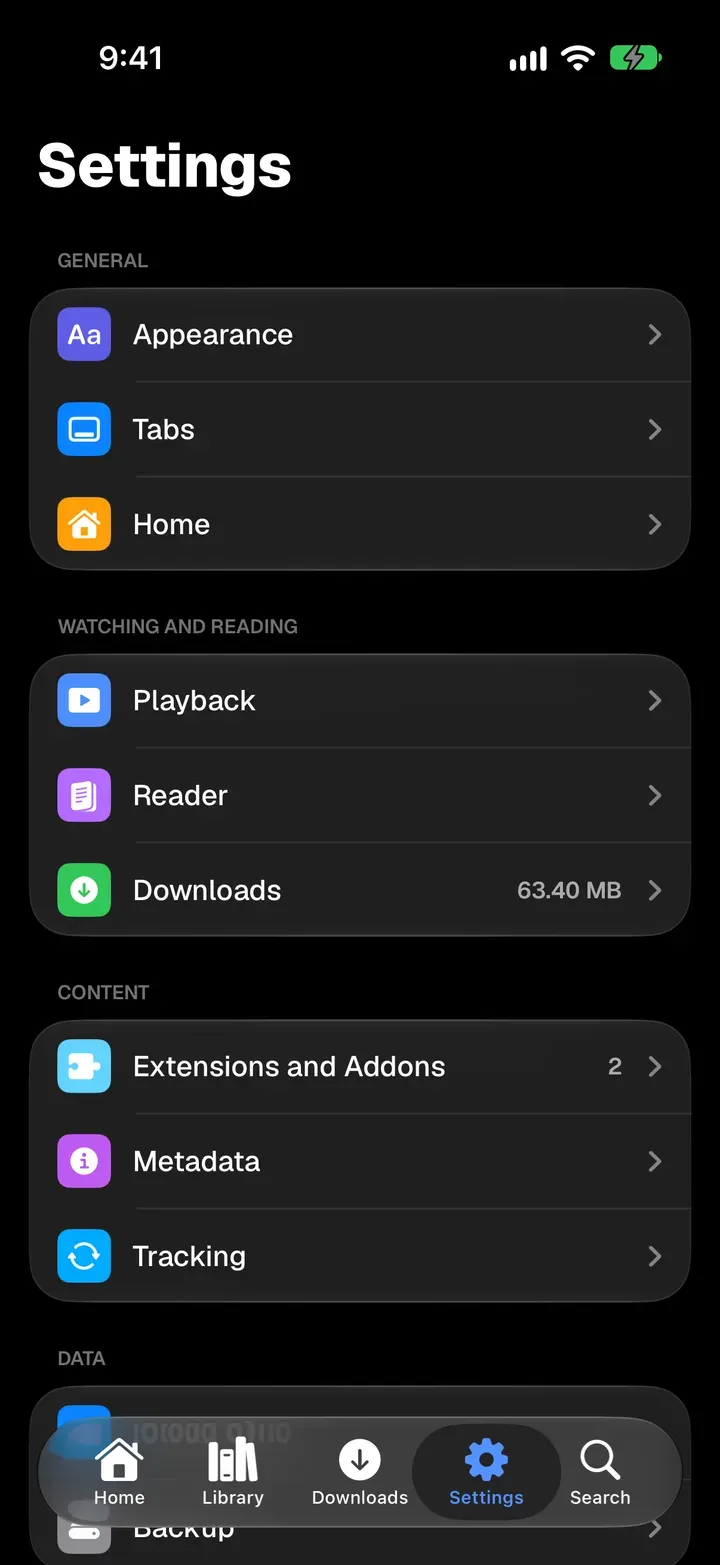
In Exia, open Settings and tap Extensions and Addons.
-
Tap Add Repository or Addon, paste the link into Repository or Addon URL, and tap Go.
-
Tick the extensions you want, or Select All, and tap Install.
Set up the reader
Section titled “Set up the reader”-
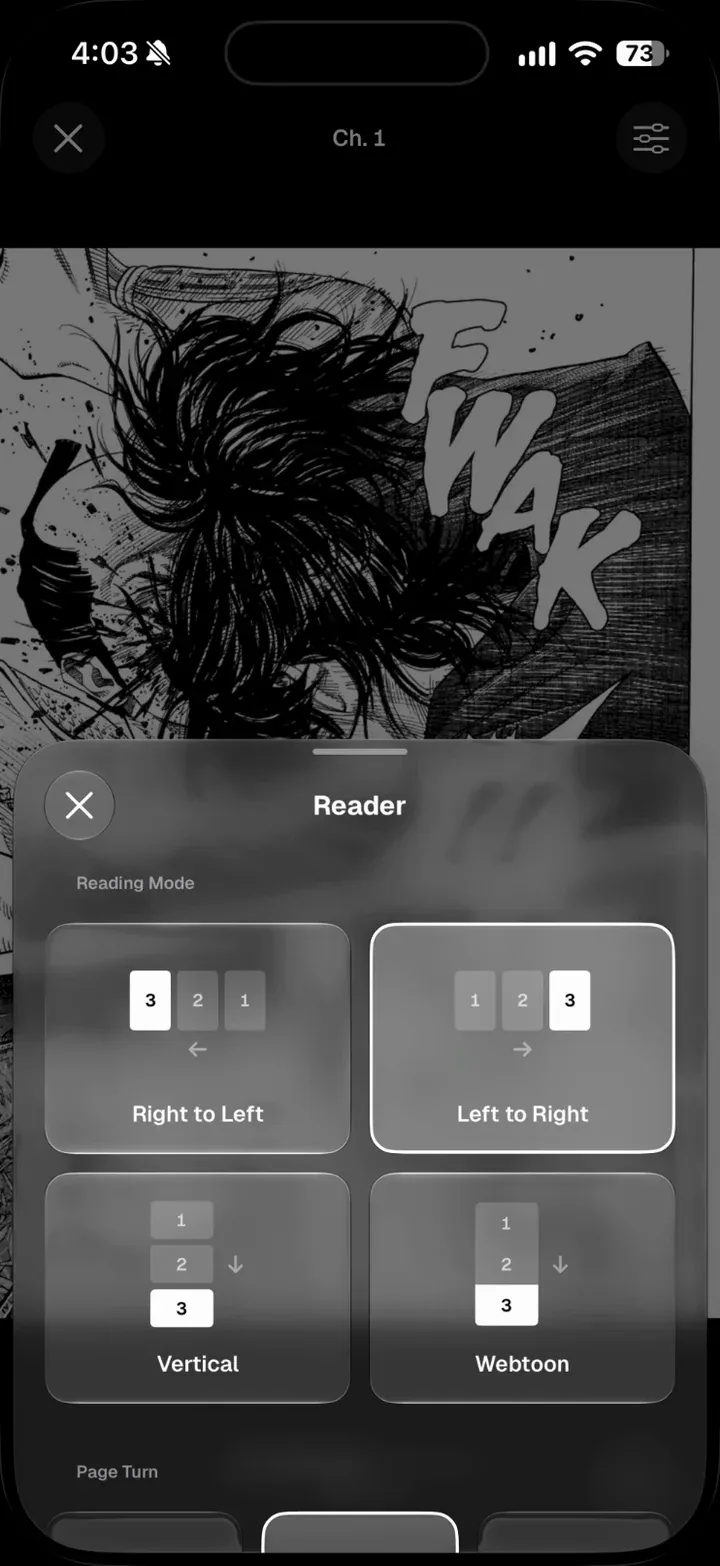
Open Settings › Reader.
-
Pick a Reading Mode: Right to Left, Left to Right, Vertical or Webtoon. Then pick a Page Turn.
-
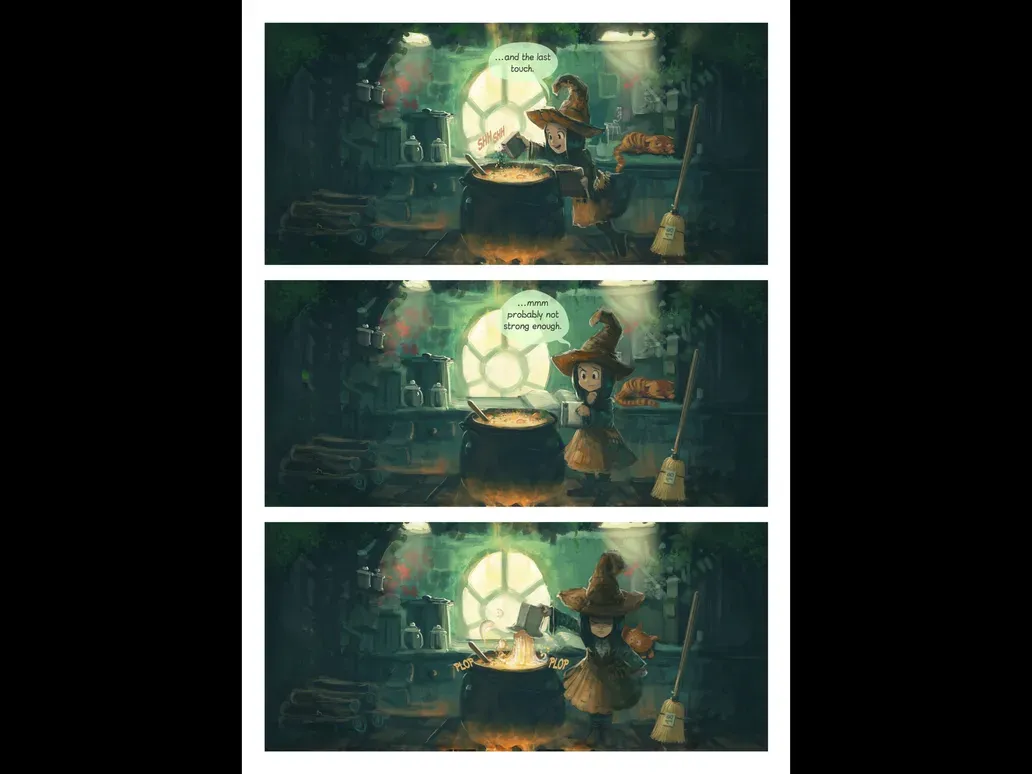
On iPad, turn on Two Pages on iPad to read side by side in landscape.
Read offline
Section titled “Read offline”On a manga’s page, tap the download button and choose Download Unread, Download Next 5 or Download All Chapters. Downloads stay on that device.
- Turn on Download Next Chapter in Settings › Reader to always have the next one ready.
- On Apple TV, left and right on the remote turn pages. Turn on Keep Screen On to keep the screensaver away.
- Save your progress to AniList, MyAnimeList and Kitsu with tracking.