
Sync Manga and Anime Across iPhone, iPad, Mac and Apple TV
Keep your library, progress, sources and settings the same on every device, through your own iCloud. No Exia account.
You need: the same Apple Account, with iCloud on, on each device.
Turn on iCloud Sync
Section titled “Turn on iCloud Sync”-
Open Settings › iCloud Sync. iCloud Sync is on unless you turned it off.
-
Under What Syncs, pick what to share: Library, Progress, Settings, Sources and Addons, Equalizer and Picture.
-
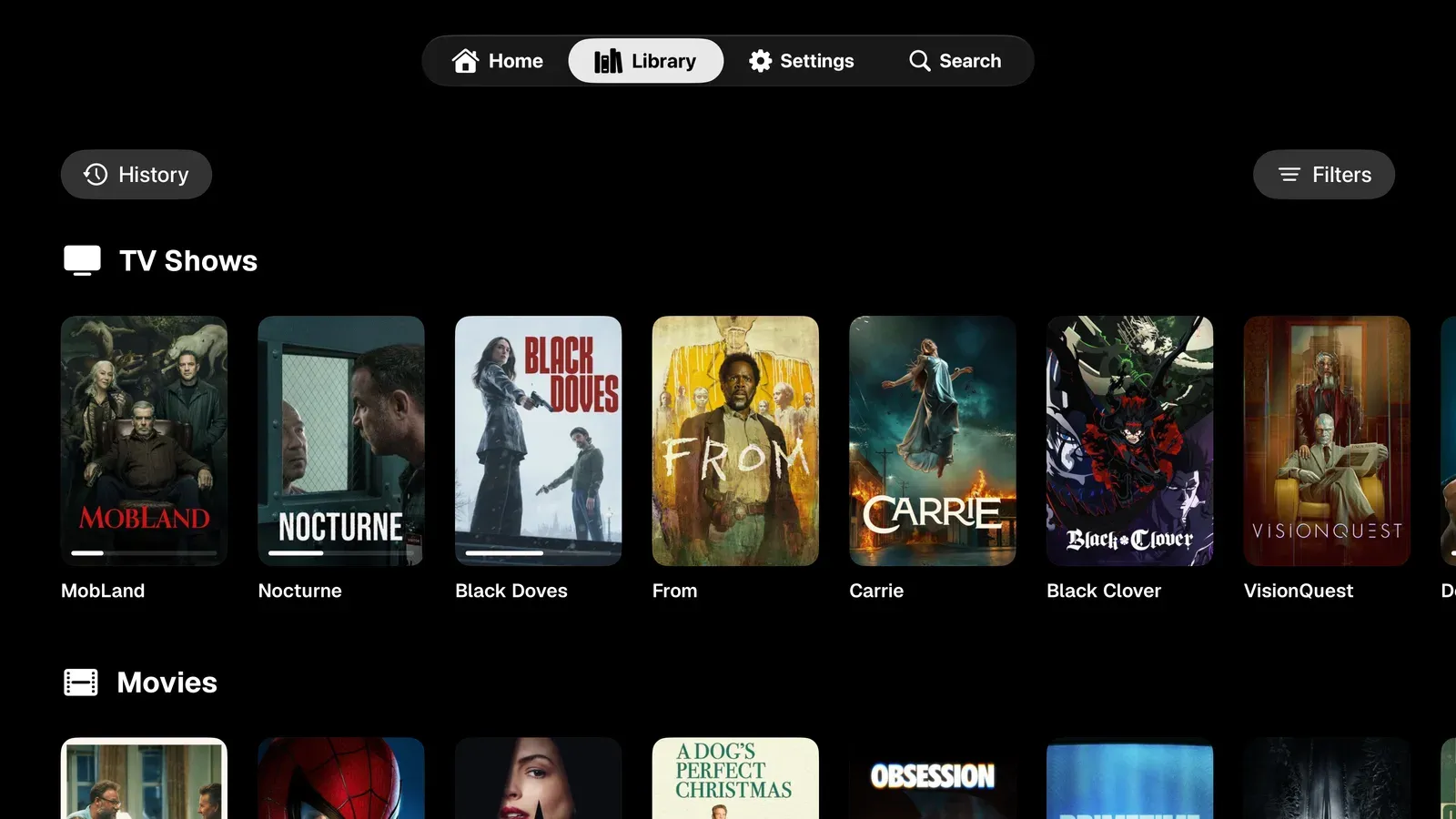
Open Exia on your other devices. Apple TV picks everything up the first time it opens.
Track on AniList, MyAnimeList and Kitsu
Section titled “Track on AniList, MyAnimeList and Kitsu”-
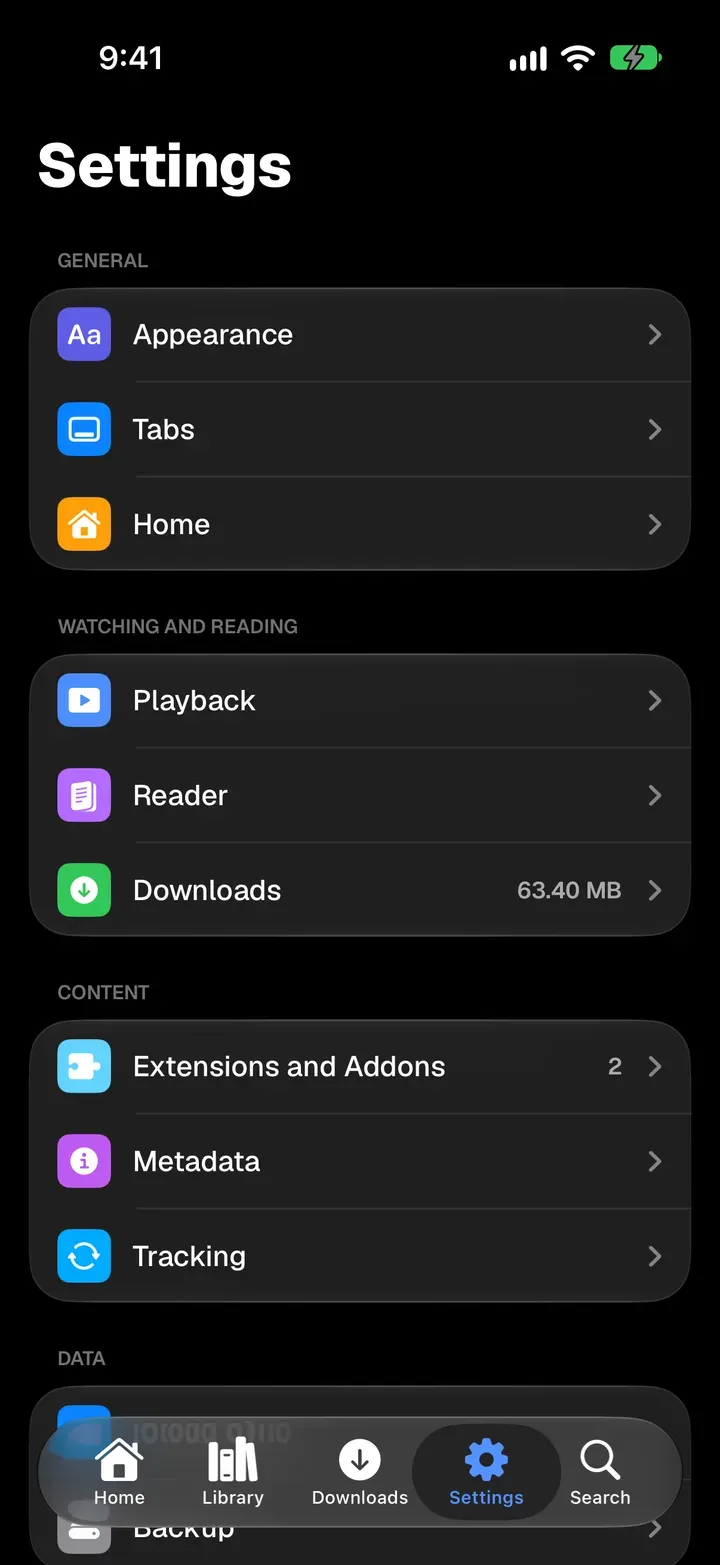
Open Settings and tap Tracking, then connect each service you use.
-
On a manga or anime, tap the Tracking button (two circling arrows) and pick the services that get it.
-
Read or watch. Progress saves to every service you picked, and changes made offline send when you’re back online.
Send to Apple TV
Section titled “Send to Apple TV”-
While a video plays on iPhone, iPad or Mac, tap the Apple TV button in the player.
-
Pick your Apple TV. Exia there carries on at the same spot, with the same source, audio, subtitles and speed.
- Both devices need to be on the same home network for Send to Apple TV.
- Equalizer and Picture start off, so your TV and your phone can each keep their own sound and look.
- Sync runs through your private iCloud, not an Exia server. See the privacy policy.